What do I do if an alarm won’t turn off or its schedule gets mixed up?
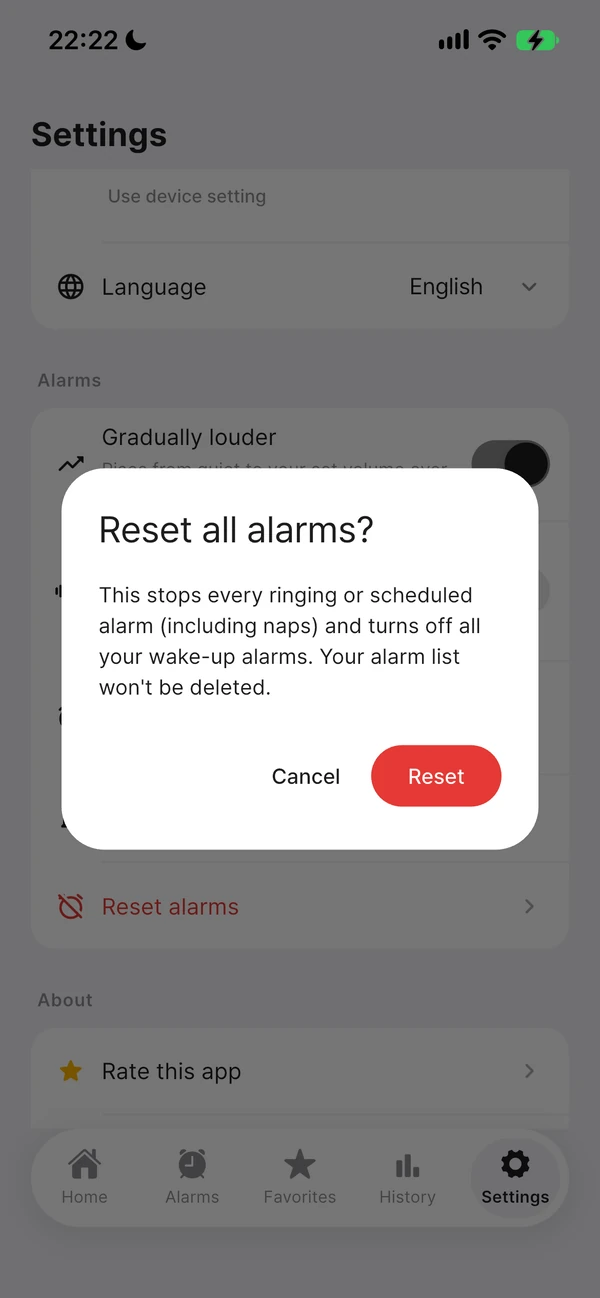
Tap “Reset alarms” in the Settings tab to stop every ringing or scheduled alarm at once, including naps. Your saved wake-up alarms aren’t deleted — they’re just turned off.
Try this before resetting
If the alarm screen is open, try tapping “Stop Alarm” first; if there’s a notification on the lock screen, try “Stop.” Use Reset alarms only if the sound still won’t stop or an odd schedule remains.
How to reset alarms
- Go to the Settings tab in Nenne.
- Tap Reset alarms under the Alarms section.
- Tap Reset in the confirmation dialog, and “All alarms have been turned off” appears.
Use this when
- Alarm sound keeps playing with no screen to stop it
- A deleted alarm or a finished nap alarm rings again
- Alarm-related notifications keep lingering
What stops when you reset?
- Any alarm sound currently ringing
- Any running nap timer and its schedule (cancelled with no ad)
- Every Nenne alarm and notification scheduled on your phone
- The remaining-time display on the lock screen
Even if one step fails along the way, the rest are still processed through to completion, and you’re shown the result.
After you reset
- Turn any wake-up alarms you need back on from the Alarms tab. The list itself stays intact.
- Your nap history and settings like alarm sound, dark mode, and language aren’t reset.
- If “Some alarms couldn’t be turned off. Please try again.” appears, try again. If it keeps happening, please contact us.