How do I add a home screen widget?
Nenne offers 3 widgets: nap timer, wake-up alarm, and a combined nap + wake-up alarm view. Long-press your home screen, find Nenne in the widget list, and add it. On iPhone, a lock screen widget is also available.
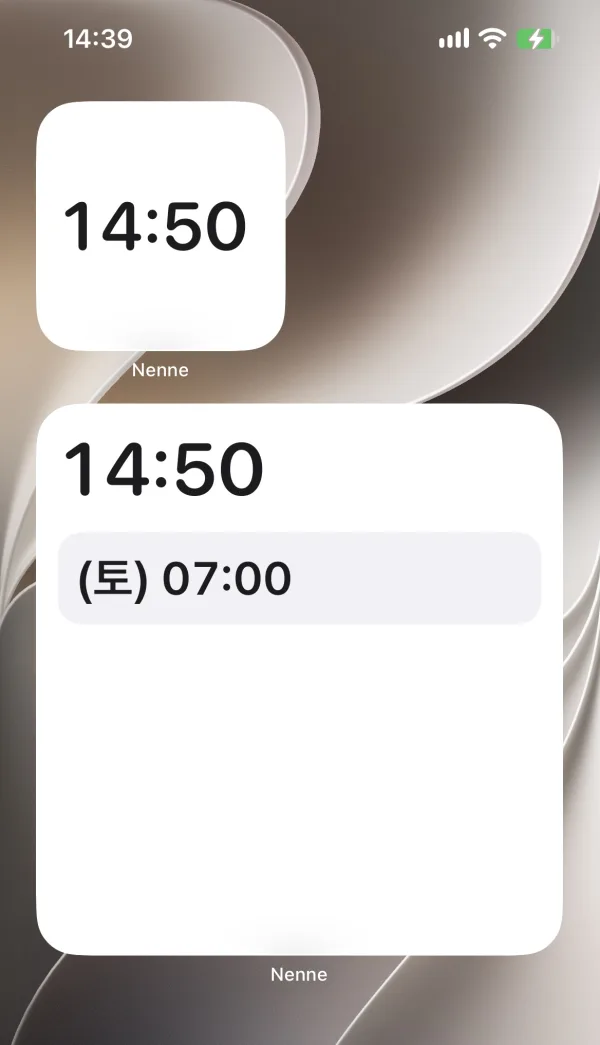
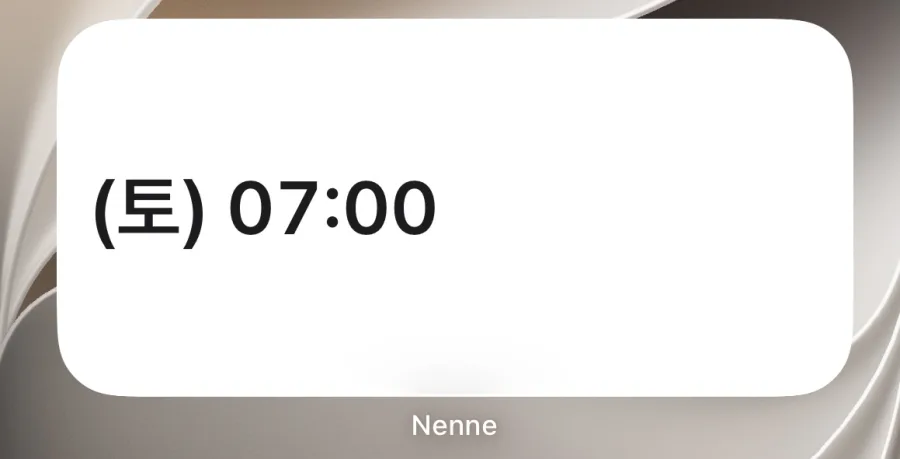
Widget types
- Nap timer · The remaining time of a running nap
- Wake-up alarm · Shows up to 5 of your nearest upcoming wake-up alarms. The medium iPhone widget shows 3 of them and the large one shows 4, with the rest shown as +N. So even if you have more than 5 alarms, +N is calculated based on those 5.
- Nap + wake-up alarm · Both at a glance
Widgets follow your device’s dark mode and the app’s language. On Android widgets, the wake-up alarm time follows your device’s 12-hour or 24-hour setting.
Good to know
- Widgets only display status. Removing a widget doesn’t affect any scheduled alarm, and tapping one doesn’t start or stop an alarm.
- Widgets only refresh when your phone allows it, so they can be a little behind the app screen.
- If a widget shows nothing, open Nenne once — the app passes the information the widget needs to display.
iPhone
- Long-press an empty area of your home screen, then tap Edit → Add Widget.
- Find Nenne in the list and choose the widget type and size (small, medium, or large).
- Add a lock screen widget by long-pressing the lock screen and tapping Customize.
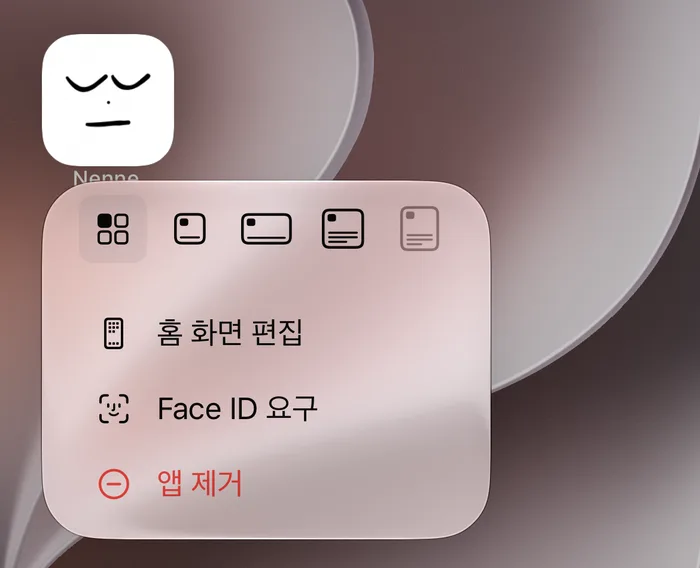
On recent iOS versions, long-pressing the Nenne app icon shows widget size icons at the top of the menu. Tap the size you want and the app icon turns directly into a widget of that size.
Android
- Long-press an empty area of your home screen and tap Widgets.
- Find Nenne in the list and drag the widget you want onto your home screen.
Menu names may vary slightly by device manufacturer.