Product update
Nenne 1.3.4: More room for naps, redesigned widgets
Plan a nap at a glance on a wider screen. Read the time remaining more clearly from your Home Screen. Here’s what’s new in Nenne 1.3.4.
A short break between study sessions, or a quiet rest with your earphones in at lunchtime: getting ready for a nap should take very little time. In Nenne 1.3.4, we’ve brought time and sound controls together on wider screens and made the essentials easier to read from widgets before you even open the app.
This update focuses on iPhone Duo, other foldables and tablets, along with a fresh widget design. It’s the same earphone alarm for your short breaks, with more comfortable ways to set up a nap and look back at your rest.
First change
Nap duration and sound, side by side
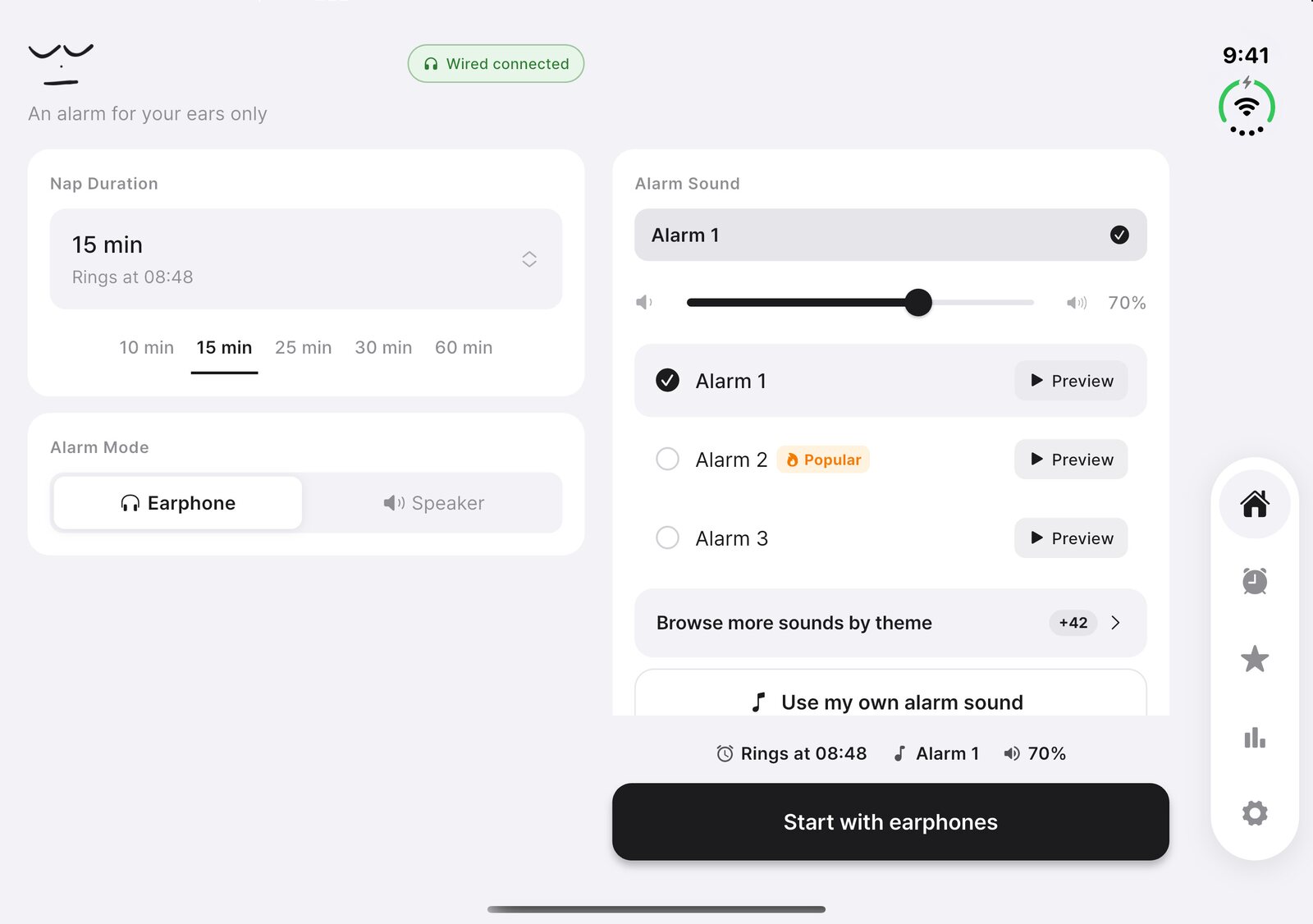
Unfold iPhone Duo in landscape and Home uses two columns. Nap Duration and Alarm Mode sit on the left; Alarm Sound sits on the right. Choose how long to rest and whether to use Earphone or Speaker mode, then preview a sound and check the volume alongside those settings. There’s less to remember as you move between controls.
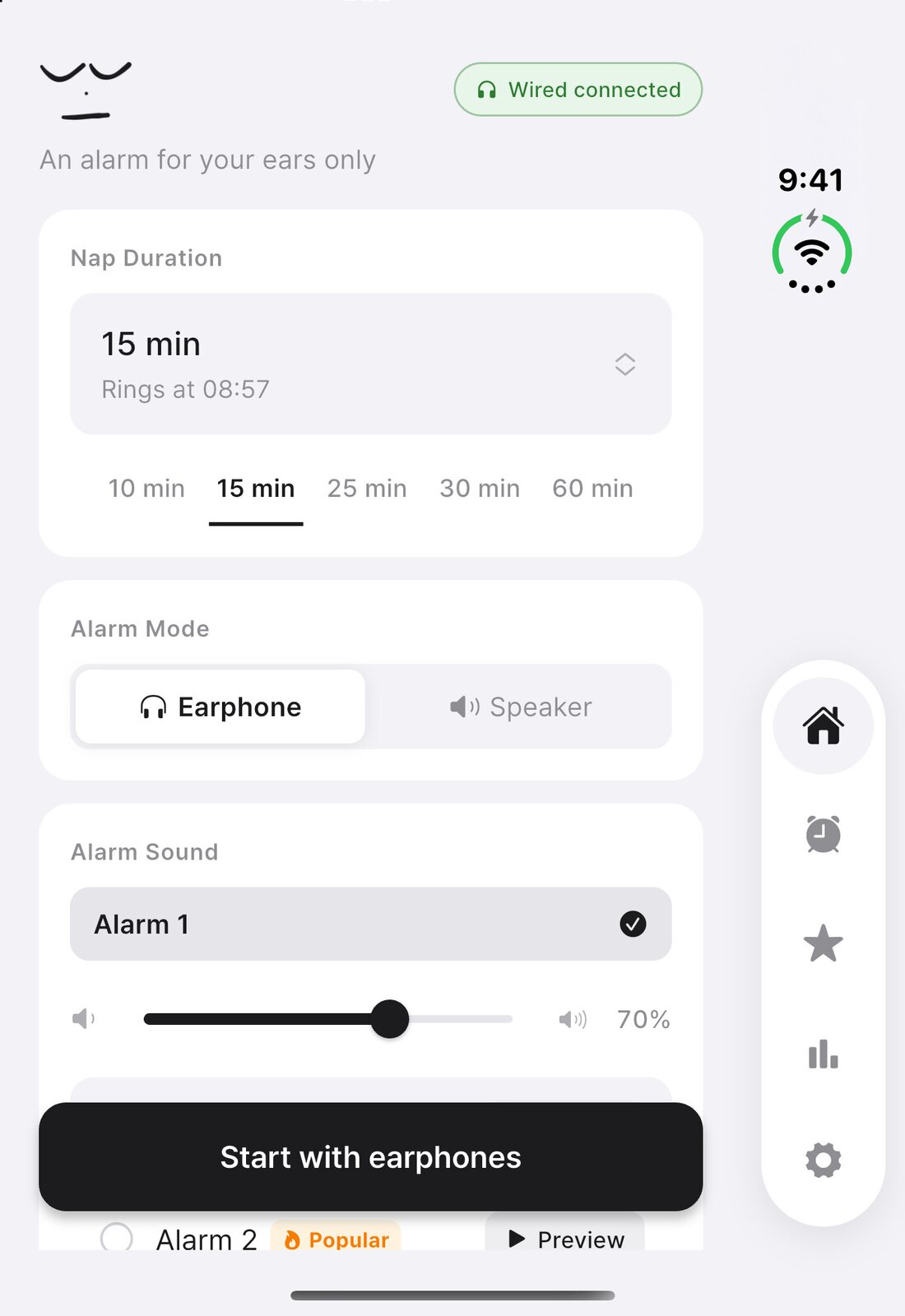
Fold the screen and the layout becomes a single column, with the same settings arranged vertically. More space doesn’t need to mean a busier timer, either: while a nap is running, the countdown stays together in one column even on the unfolded screen.
Foldables such as Galaxy Fold and Android tablets also use two columns when there is enough room. On iPad, you’ll find the familiar single-column layout. The layout follows the space and orientation you’re using, keeping the things you need within easy view.
Second change
Your nap patterns and daily history, together
How often you nap and what happened on a particular day make more sense together. On the unfolded landscape screen, the History tab places the nap heatmap and summary on the left, with a dated activity list on the right.
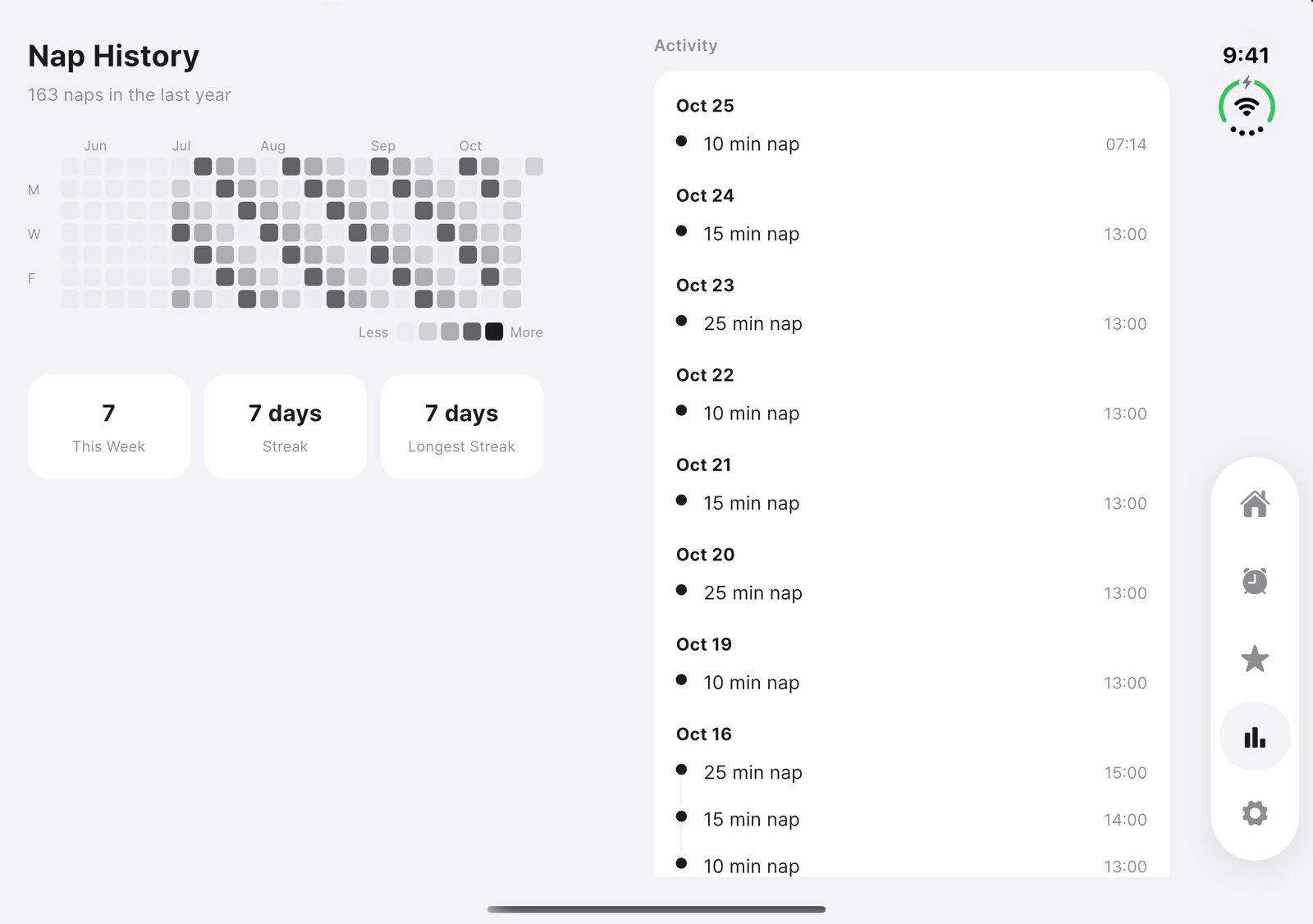
Look at your pattern of rest on one side and check the duration and time of individual naps on the other. Fold the screen and the information continues in one column, ready to read in the space you have.
Third change
Redesigned widgets, from countdowns to nap history
We’ve redrawn the Home Screen widgets, too. The nap widget pairs a thin progress ring with the time remaining, and shows when the alarm is due and whether it will use earphones or the speaker. A quick look at your Home Screen gives you the details you need before settling back into your break.
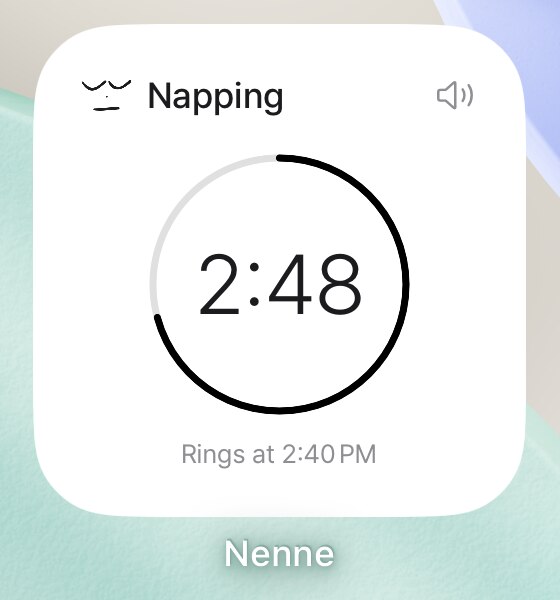
The next-alarm widget makes the upcoming wake-up time the focus. The combined nap and next-alarm widget now follows the same spacing and type hierarchy.
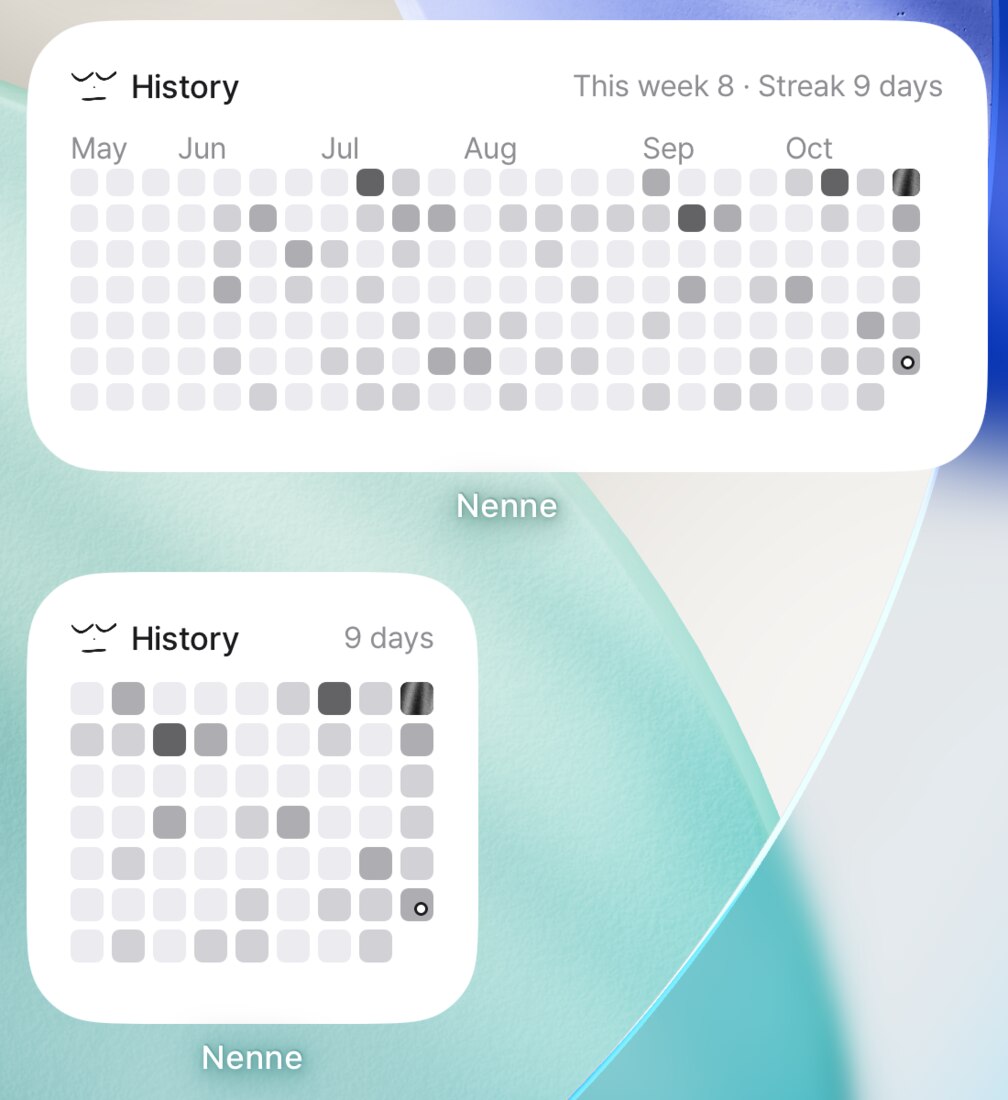
The new history widget brings the heatmap from History to your Home Screen. The small size shows your streak and recent days; the medium size adds month labels, a “this week” nap count, and your streak. “This week” covers the last seven days, including today. It’s a small reminder of the breaks you’ve made time for, without opening the app.
More improvements
Small fixes for alarms you use every day
On Android, we fixed an issue where dismissing a repeating wake-up alarm from its notification without opening the app could leave the next day or scheduled weekday without an alarm. This matters when you stop an alarm and simply put your phone down again. After updating, open Nenne once so the fix also applies to your existing repeating alarms.
We’ve also adjusted the sheet for locked alarm sounds. Its unlock choices and Cancel button remain accessible at the bottom when text is large or the explanation needs more space.
A quiet break around other people, then waking at the time you chose: that remains at the heart of Nenne. Our team will keep working on the small details around those moments. Thank you for using Nenne and sharing your feedback.
Nenne 1.3.4
Open up.
Rest a little easier.
Try the wider layouts and new widgets as you get ready for your next quiet break.
The Nenne team
Download Nenne